
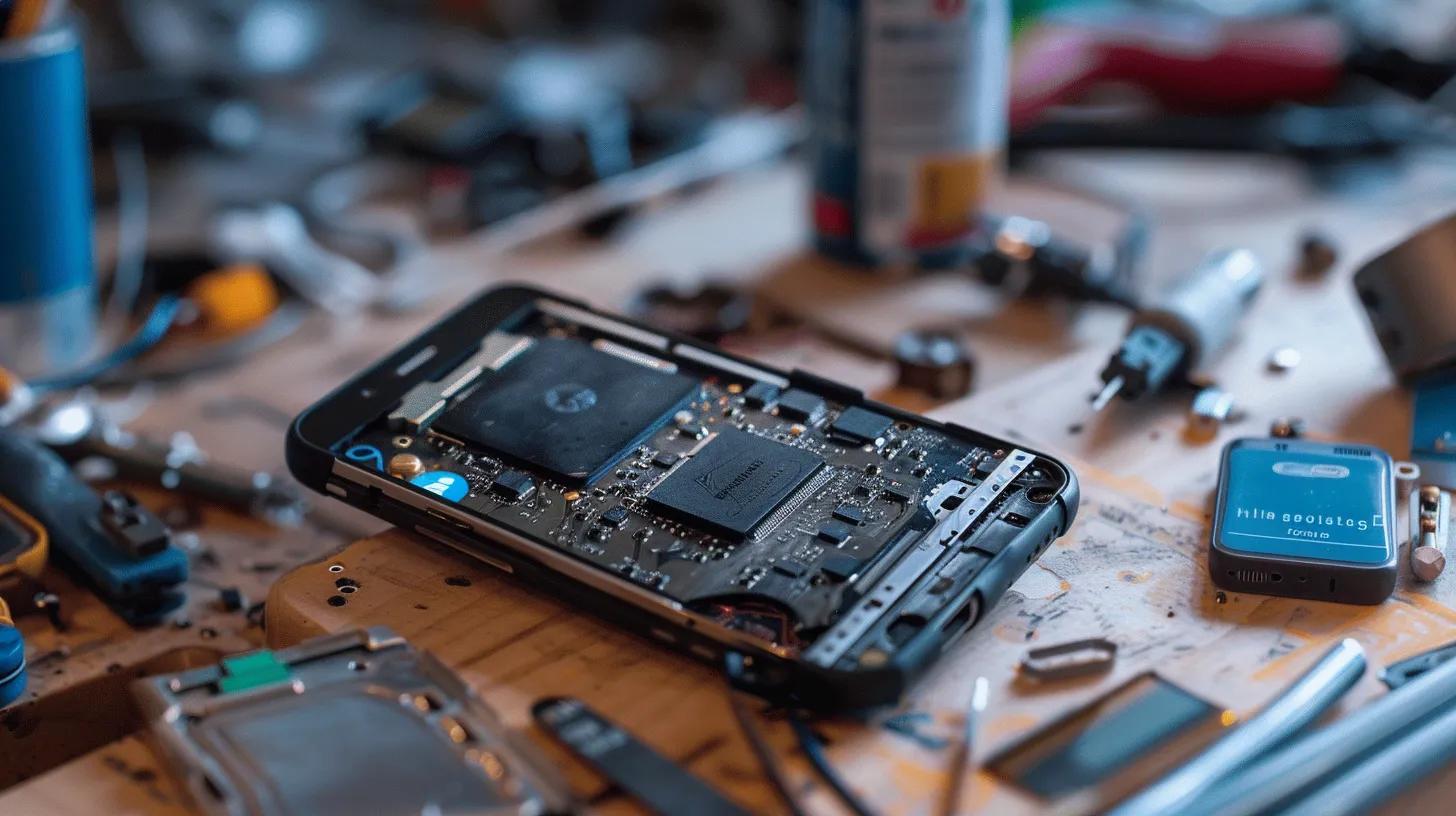
Troubleshooting Gaming Console Setup Issues in Broken Hill: Expert Repair and Support for Xbox, PlayStation, and Nintendo Switch
Setting up a gaming console should be straightforward, but power faults, display failures, controller pairing errors and network problems often stop play before it begins. This guide covers common gaming console setup issues for Xbox, PlayStation and Nintendo Switch, explains why they happen, and shows step-by-step troubleshooting Broken Hill players can use to get back online quickly. You will learn safe power checks, HDMI and dock diagnostics, controller pairing and firmware strategies, plus model-specific checks for Xbox Series/One, PS5/PS4 and Switch variants. When DIY limits are reached, we explain when to escalate to professional diagnostics and repair, and how Bizup can help with local support in regional South Australia and New South Wales. Read on for quick lists that target common symptoms, tables that summarise causes and fixes, and concise decision criteria so you can decide whether to keep troubleshooting yourself or seek expert help.
What Are the Most Common Gaming Console Setup Issues in Broken Hill?
Common setup problems in Broken Hill mirror larger trends but are shaped by regional realities like intermittent power and variable home network setups. The main categories include power failures, no-display/HDMI errors, controller pairing and drift, and Wi-Fi/Ethernet connectivity problems; each category has straightforward initial checks anyone can run safely. Understanding these categories helps narrow root causes quickly and determines whether a simple cable swap or a professional diagnostic is needed. The following sections list the top symptoms and provide quick checks for fast fixes.
The following list describes the top symptoms and quick checks to perform before deeper troubleshooting.
- Console won’t power on: Check the power cable and outlet, test a different socket, and inspect the power brick LED if present.
- No video or black screen: Swap the HDMI cable and try a different TV input, or try the console in another display mode.
- Controller not pairing: Check battery/charge level, run pairing sequence from console settings, and remove wireless interference sources.
These checks are quick first steps you can complete in minutes to rule out common, easily fixed faults and to identify when a deeper diagnostic is required.
Different symptoms point to distinct likely causes; the table below summarises common issues, typical causes, and practical next steps to resolve them.
This table helps prioritise hands-on checks; if a simple swap or reset does not restore function, the next section explains model-specific troubleshooting for Xbox systems.
Which Power Problems Cause Consoles Not to Turn On?
Power failures often come from external components like cables and outlets rather than the console’s internal electronics, and a methodical sequence of checks usually isolates the problem quickly. Start by confirming the outlet supplies power using a lamp or phone charger, then replace the power cable or power brick with a known-good unit when possible. Look for status LEDs, listen for fan spin or drive noise, and note any burning smells or visible damage, which means it’s time to stop DIY attempts and get professional help. These steps protect both the console and your home electrical setup while identifying whether the issue is a replaceable part or an internal board fault. The next subsection explains how connectivity issues can prevent a successful setup even when the power is fine.
How Do Connectivity Issues Affect Console Setup and Gameplay?
Network problems and controller wireless interference can make a console appear broken when the hardware is functioning correctly, and knowing the difference saves time. For network issues, test an Ethernet connection to confirm if Wi-Fi is the cause, reboot the router, and check for firmware updates on the console that resolve compatibility problems. Controller connectivity problems often stem from low battery, USB pairing issues or radio interference from nearby devices; re-pair by following the console’s pairing routine and removing obstructions between the controller and console. If network latency or NAT type blocks online play, temporary workarounds include using a wired connection or configuring the router, while persistent issues may need provider-side checks. Resolving connectivity clarifies whether the next steps require hardware repair or network configuration.
How Can You Troubleshoot Xbox Setup and Repair Issues in Broken Hill?
Xbox setup and repair troubleshooting follows a clear diagnostic order that isolates power, display, controller and software faults without risking data loss. Begin with power and display checks, then move to controller pairing and network validation; if the Xbox shows firmware errors or persistent crashes, system updates, or a professional diagnostic are the safe next steps. Understanding typical Xbox symptoms and the actions that address them reduces downtime and helps decide whether a simple factory or software reset is suitable or if a repair is necessary. The following table focuses on Xbox model-level clarity for common faults and expected diagnostic actions.
Below is a concise model-level table with typical issues and what diagnostic steps technicians use to isolate them.
These model-specific checks help our local Broken Hill technicians prioritise parts and tests during an initial diagnostic, ensuring efficient repair and clear expectations.
Before moving into step-by-step procedures, this numbered list offers the immediate, safe sequence to troubleshoot common Xbox power and controller issues.
- Soft restart: Hold the Xbox power button for 10 seconds, then restart to clear minor software hangs.
- Power cycle: Unplug the power cord for 60 seconds, then reconnect to reset the internal PSU.
- Check cables: Replace the HDMI and power cables with known-good units to isolate cabling faults.
After these steps, if the console still exhibits power failure or persistent pairing errors, the next subsection explains when professional service is warranted and what to expect from a diagnostic.
What Are the Steps to Fix Xbox Power and Controller Sync Problems?
A practical, ordered troubleshooting routine reduces unnecessary component replacements and resolves most common Xbox issues at home. Begin with a soft restart to clear temporary software faults, then perform a full power cycle by unplugging for a minute to reset capacitors and the PSU. If power indicators remain absent, inspect the power brick and outlet and test with another cord where available; for sync problems, charge the controller and use the controller’s pairing button in combination with the console’s pairing sequence. If firmware updates are available, apply them before attempting a factory reset; updates often resolve controller compatibility and controller latency issues. If these steps fail, the console likely needs professional inspection for PSU, USB or internal board faults.
When Should You Seek Professional Xbox Repair Services in Broken Hill?
Certain red flags indicate DIY attempts should stop, and a trained technician should perform diagnostics to avoid further damage. Seek professional help when the Xbox shows no power after verified cable/outlet checks, emits burning smells, displays persistent overheating despite cleaning, or fails to boot after software recovery attempts. Our professionals provide thorough hardware-level tests, including PSU voltage checks and internal board inspection, offering clear repair options and timeframes. Our local technicians can also assist with parts sourcing, especially for models requiring specific components. When hardware faults are suspected, a professional diagnostic maximises the chance of a successful, cost-effective repair.
What Are Effective Troubleshooting Methods for PlayStation Setup Problems in Broken Hill?
PlayStation consoles encounter HDMI port faults, software/OS errors and controller issues that often present as display problems, failed updates or unresponsive DualSense/DualShock controllers. Start with HDMI cable swaps and entering Safe Mode for system software reinstalls or rebuilding database options that resolve many boot and update failures. Controller faults respond to resets and firmware updates or to battery and cable checks in the case of charging issues; physical joystick faults may need replacement or repair. The following list explains display and software-focused checks that frequently restore PlayStation systems to working order.
- HDMI swaps and TV input checks: Try different HDMI cables and inputs or alternate displays to rule out external display faults.
- Safe Mode recovery: Use Safe Mode to update system software or rebuild the database if the console displays errors on startup.
- Controller reset and firmware: Reset the controller with the small button on the rear and install firmware updates through console settings.
These practical steps often restore functionality, and when they do not, the next subsections describe HDMI/software procedures and controller connectivity fixes in more detail.
How to Resolve HDMI Port and Software Errors on PlayStation Consoles?
HDMI and software errors are common and frequently solvable through methodical checks that prevent unnecessary repairs. Start by replacing the HDMI cable and testing the console on another TV or monitor to isolate port damage; if the console works on another display, the original TV input or cable is likely at fault. For software errors, boot into Safe Mode and select options to update system software or rebuild the database, which resolves corrupted data or failed startup sequences without affecting user saves when performed correctly. Persistent no-video conditions despite cable and display swaps suggest port damage that may require port repair or board-level service. If you observe physical port damage, stop further cable swaps and seek a professional inspection to avoid worsening the condition. What Are Common PlayStation Controller and Connectivity Fixes?
PlayStation controllers commonly experience pairing, battery and firmware-related issues that are often resolved without parts replacement. Begin by charging the controller and performing the reset using the pinhole on the rear, then pair via USB to ensure initial connection before attempting wireless pairing. Check for controller firmware updates through the console and install them; updates commonly address stability and latency problems. If the controller shows physical joystick wear or persistent input errors after calibration, professional repair or replacement of the joystick module may be required to restore accurate input.
How Do You Fix Nintendo Switch Setup and Repair Issues in Broken Hill?
Nintendo Switch issues such as Joy-Con drift, docked/undocked display problems and Wi-Fi instability require a combination of calibration, cleaning, and targeted hardware checks that account for the unique dock and portable modes. Simple calibration and cleaning often mitigate drift and connection errors, while display problems when docked usually trace to dock HDMI or power issues. Network problems on the Switch can be due to router settings, aeroplane mode toggles or RF interference in compact living spaces; testing with a different network or restarting the router helps isolate these. The next subsections dive into Joy-Con drift specifics and Switch Wi-Fi/display troubleshooting.
Nintendo Switch owners can attempt the following calibration and cleaning list before seeking repair.
- Calibrate controllers: Use the console’s calibration tools in settings to recalibrate joystick dead zones.
- Clean joystick modules: Use compressed air and isopropyl alcohol swabs around joystick bases to remove dust and debris.
- Test dock and cables: Swap the HDMI cable and test the docked console on another TV to isolate dock faults.
These initial steps often restore reliable control and display; if drift persists, professional repair or Joy-Con replacement is recommended.
What Causes Joy-Con Drift and How Is It Repaired?
Joy-Con drift typically arises from wear on the joystick contacts or dust ingress that interferes with the position sensors, and calibration only hides symptoms if physical wear is present. Begin with calibration via system settings and cleaning around the joystick using compressed air; if the problem persists, a replacement joystick module or professional repair that replaces worn components is usually required. Our professional repairs can restore factory tolerance and eliminate drift without forcing a full controller replacement. Our skilled technicians also inspect the PCB and connectors for related faults. If you notice progressive drift or inconsistent inputs after cleaning, consider a professional diagnostic to determine whether a cleaning, module replacement, or full controller exchange is most cost-effective.
How to Address Nintendo Switch Wi-Fi and Display Problems?
Switch Wi-Fi and display faults depend on whether the unit is docked or undocked, and can be systematically tested to find the root cause. For Wi-Fi issues, toggle aeroplane mode, forget and re-add the network, and test with a different network or a mobile hotspot to determine if the home router is the source. For display problems, test the console undocked to see if the internal screen functions, then test the dock with a different HDMI cable and TV; dock-related display issues commonly stem from faulty dock power or HDMI pass-through. If firmware updates are pending, install them; software patches often resolve connectivity and display negotiation bugs. Persistent dock or Wi-Fi hardware faults are best resolved by a technician who can test the dock’s power circuitry and the console’s wireless module.
When Should You Contact Bizup for Professional Gaming Console Repair in Broken Hill?
If methodical home troubleshooting does not restore your console, or if the fault includes signs of internal damage, professional repair saves time and prevents accidental harm. Red flags for contacting a repair specialist include no power after cable/outlet checks, visible port damage, burning smells, persistent overheating, repeated firmware failures that prevent boot, and controller hardware faults that resist calibration and cleaning. Bizup operates across South Australia and New South Wales, including Broken Hill, and offers in-store, remote and on-site support for consumer electronics, covering both hardware and software solutions. For regional gamers who need a reliable diagnostic pathway, Bizup can perform transparent inspections and recommend cost-effective repair options.
Below is a decision table to help you determine when to attempt DIY fixes and when to reach out for professional assistance.
This table clarifies escalation thresholds and helps Broken Hill players choose the fastest safe route to restore play.
What Is Bizup’s Process for Diagnosing and Repairing Console Issues?
Bizup follows a straightforward diagnostic workflow designed to be transparent and efficient for regional customers: initial problem intake and symptom recording, systematic diagnostic tests, a clear repair quote, repair or part replacement, and final testing before return. Booking diagnostics can be arranged through our local options—you can request in-store drop-off, schedule on-site support, or opt for remote troubleshooting to triage issues quickly. A typical local repair begins with power and port tests, followed by software checks and component-level inspection. Our technicians then report findings and agree on a repair plan with you. To proceed with a diagnostic or repair, contact us to arrange your preferred local support option and receive clear next steps and timeframes.
Which Console Models and Brands Does Bizup Support Locally?
We support major console brands relevant to household gaming setups and regional repair needs, focusing on Xbox, PlayStation and Nintendo Switch systems as part of our consumer electronics service offerings. If you have a specific model question—such as a PS5 HDMI port fault or Switch Joy-Con repair—we recommend contacting us to confirm model-level parts availability and expected timeframes for your Broken Hill location. Our local service options include in-store, remote and on-site support, helping regional customers choose the most convenient diagnostic path and ensuring that model-specific queries are addressed directly by one of our technicians.
What Are the Best Practices for Maintaining Your Gaming Console Setup in Broken Hill?
Preventive maintenance reduces the chance of setup failures and extends console life, and it is particularly valuable in regional settings where repair access may take longer. Key practices include ensuring good ventilation, scheduling regular software updates, using quality cables and surge protection, and implementing cleaning routines for controllers and vents. These measures lower the risk of overheating, connectivity faults and premature component wear. The maintenance checklist below provides actionable items you can incorporate into monthly and quarterly routines to keep consoles running reliably.
- Placement and ventilation: Keep consoles in open spaces with at least several centimetres of clearance and avoid enclosed cabinets during long play sessions.
- Regular software updates: Check for firmware and system updates monthly and apply them when the console is idle to avoid interrupted installs.
- Safe handling and cleaning: Use compressed air to clear vents and soft wipes for external surfaces; avoid opening the unit unless you are qualified.
Following these practices reduces service needs and keeps gaming sessions smoother; the next subsections offer targeted advice on overheating prevention and software backup strategies.
How to Prevent Overheating and Hardware Failures in Consoles?
Overheating accelerates component failure and often manifests as throttling, unexpected shutdowns or noisy fans, so proactive placement and cleaning are essential. Position consoles on hard, flat surfaces away from direct sunlight and blockages; use elevated stands or shelves that encourage airflow, and avoid stacking devices that trap heat. Clean vents regularly with compressed air and check for dust accumulation on fans; if you notice persistent high fan speeds or thermal shutdowns despite cleaning, a professional thermal inspection can assess whether repasting or internal cleaning is needed. Maintaining ambient room temperatures and avoiding long continuous play sessions without breaks also mitigates thermal stress on internal components.
What Software Updates and Backups Should You Perform Regularly?
Keeping console software current prevents many setup and online play issues and ensures compatibility with controllers and services, while regular backups protect save data from corruption or failed updates. Check for system and controller firmware updates at least monthly and schedule updates during off-hours to avoid interrupted installs; use cloud save services where available to back up game progress automatically. For consoles with local backup options, periodically export saves to external storage as an additional safeguard before major firmware updates or repairs. Avoid interrupting updates once started; if an update fails, consult recovery or Safe Mode options before attempting reinstallations to protect user data.
- Monthly: Check and install system and controller firmware updates, and clear dust from vents.
- Quarterly: Verify cloud save status and export key saves to external storage as needed.
- Annually: Inspect cables for wear and consider professional cleaning if heavy dust buildup is present.
Regular update and backup routines minimise the impact of software errors and make recovery straightforward if repair becomes necessary.